Most WordPress translation guides start with a file you have to download, edit in a special program and upload again. There is a shorter way.
Start on the page, not in a file
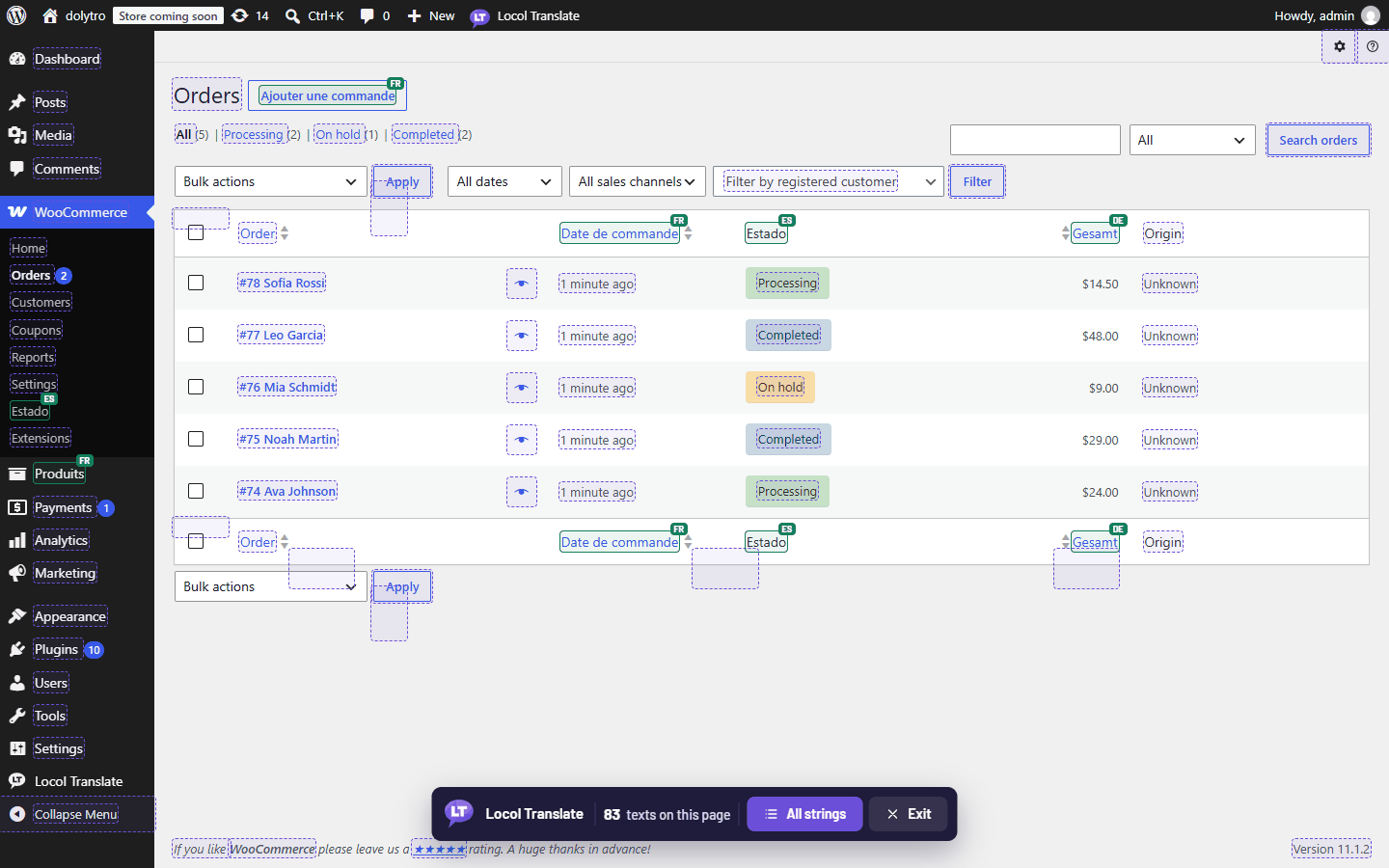
Open the screen you want to change. In a shop, that may be the Settings page or a product list. Click Locol Translate in the toolbar and every text that can be translated gets an outline.
Click the text you want, say Add to cart, choose French and type Ajouter au panier. Press Save. The button changes on the page at once.
A page can hold more than one language. Translate each text into the language you want, one at a time.
Let a free service write the first draft
Press Generate instead of typing. A free translation service writes a draft, and Locol Translate keeps it marked "needs review" until a person approves it. Nothing is sent anywhere until you agree to it once.
Keep placeholders safe
Some texts hold placeholders such as %s or %d. A translation that adds one the original does not have would break the page, so Locol Translate refuses to save it, and warns you when one is missing.
- Translate on the page where you see the text.
- Each text keeps its own language.
- Machine drafts stay "needs review" until approved.
- Placeholders are checked before saving.
Where to go next
Read the full guide to translating a plugin page, or install the plugin and try it on your own site.