Import and export
Move translations between sites, keep a copy, or hand them to a translator, as CSV, JSON, PO or MO files.
When to use it
Translations are stored in your database. If you move a whole site and copy its database, the translations move with it. Import and export is for moving only the translations, or for working on them outside WordPress.
Export
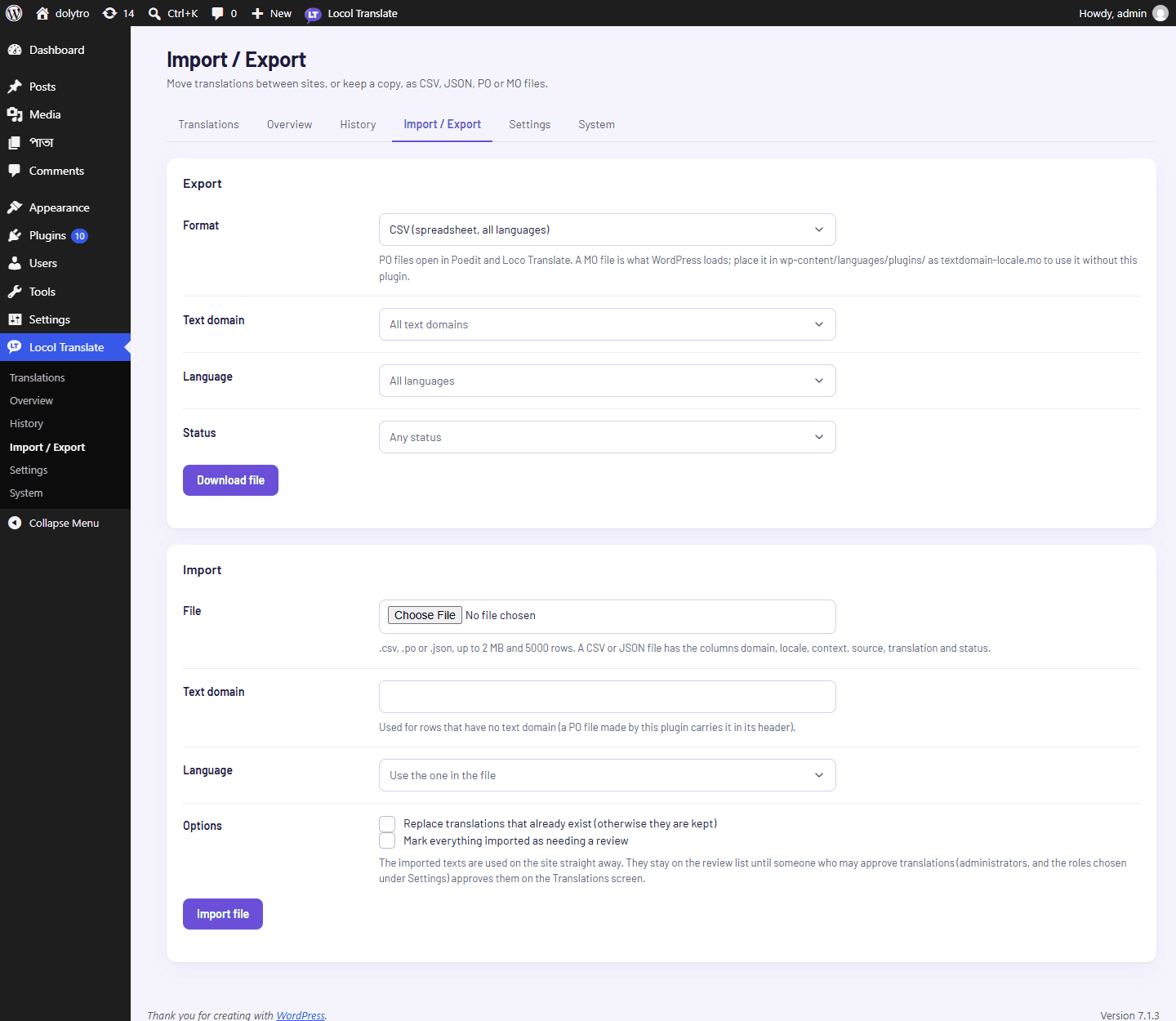
Go to Locol Translate, then Import / Export. Choose a format:
| Format | Contains |
|---|---|
| CSV | All languages, opens in a spreadsheet |
| JSON | All languages |
| PO | One text domain and one language. Opens in common translation tools such as Poedit |
| MO | Compiled file for one text domain and one language |
- 1Choose the format.
PO and MO need one text domain and one language.
- 2Narrow it down.
Choose a text domain, a language and a status: Any status, Approved only, or Needs review only.
- 3Click Download file.
Import
- 1Choose the file.
Only
.csv,.poand.jsonfiles can be imported, up to 2 MB and 5000 rows. A CSV or JSON file has the columnsdomain,locale,context,source,translationandstatus. - 2Set the defaults.
A text domain for rows that have none, and a language if the file does not say which one.
- 3Choose the options.
Replace translations that already exist (otherwise they are kept), and mark everything imported as needing a review.
- 4Click Import file.
A message tells you how many rows were added, updated, skipped, refused or saved with a warning. Rows with a placeholder problem are refused with the row number and the reason.
Use a MO file without the plugin
A MO file is what WordPress loads. Put it in wp-content/languages/plugins/ named as the text domain, a dash and the language, for example textdomain-fr_FR.mo, and WordPress uses it without Locol Translate.
Only administrators can import and export. Imported texts are used on the site straight away. See Roles and permissions for who approves them.