How Generate works
Which services are asked, what is sent, and how the result is saved.
Generate a draft
Open any plugin screen in wp-admin, turn on translate mode and click a text. In the editor, choose the language and click Generate. A draft appears in the text box.
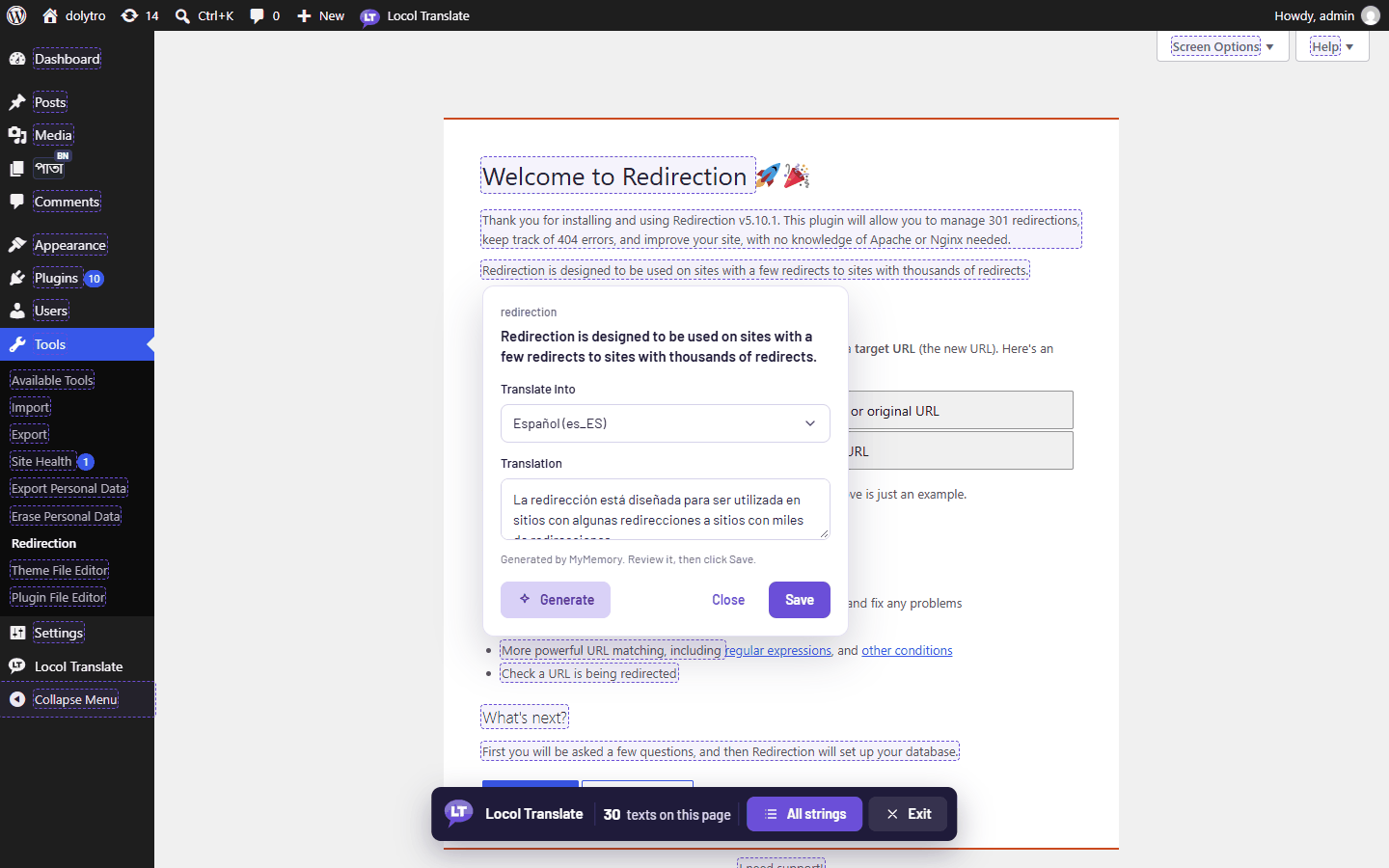
- 1Agree once.
The first time, a message explains what is sent and asks you to allow it. Nothing is sent before you agree.
- 2Read the draft.
The status line says which service answered.
- 3Edit and save.
Click Save. The translation is marked Needs review.
What is sent
Only the text of the single string you are translating is sent. No other data leaves your site. Locol Translate assumes the original text is English.
Which service answers
Services are tried in this order. The first one that returns a translation is used.
| Order | Service | Needs |
|---|---|---|
| 1 | Google Cloud Translation | Your own API key |
| 2 | DeepL | Your own API key |
| 3 | Microsoft Translator | Your own key and, for most keys, a region |
| 4 | MyMemory | Nothing. Free |
| 5 | Google Translate web endpoint | Nothing. Free, unofficial, may be rate limited |
A service without a key is skipped. If one fails, the next one is tried. MyMemory takes texts up to 500 characters; a longer text goes on to the next service. No text longer than 5000 characters is translated.
Safety checks
Placeholders such as %s are checked the same way as a translation you type. A draft with more placeholders than the original is refused.
Turn it off
Under Locol Translate, Settings, Automatic translation, the switch allows or stops sending text. While it is off, nothing is sent.
Next: Add a DeepL or Google key.