Your first translation
What the editor shows, what each button does, and what happens when you save.
Open a text
Open any plugin screen in the admin, click Locol Translate in the toolbar, then click one of the outlined texts. The editor opens next to it.
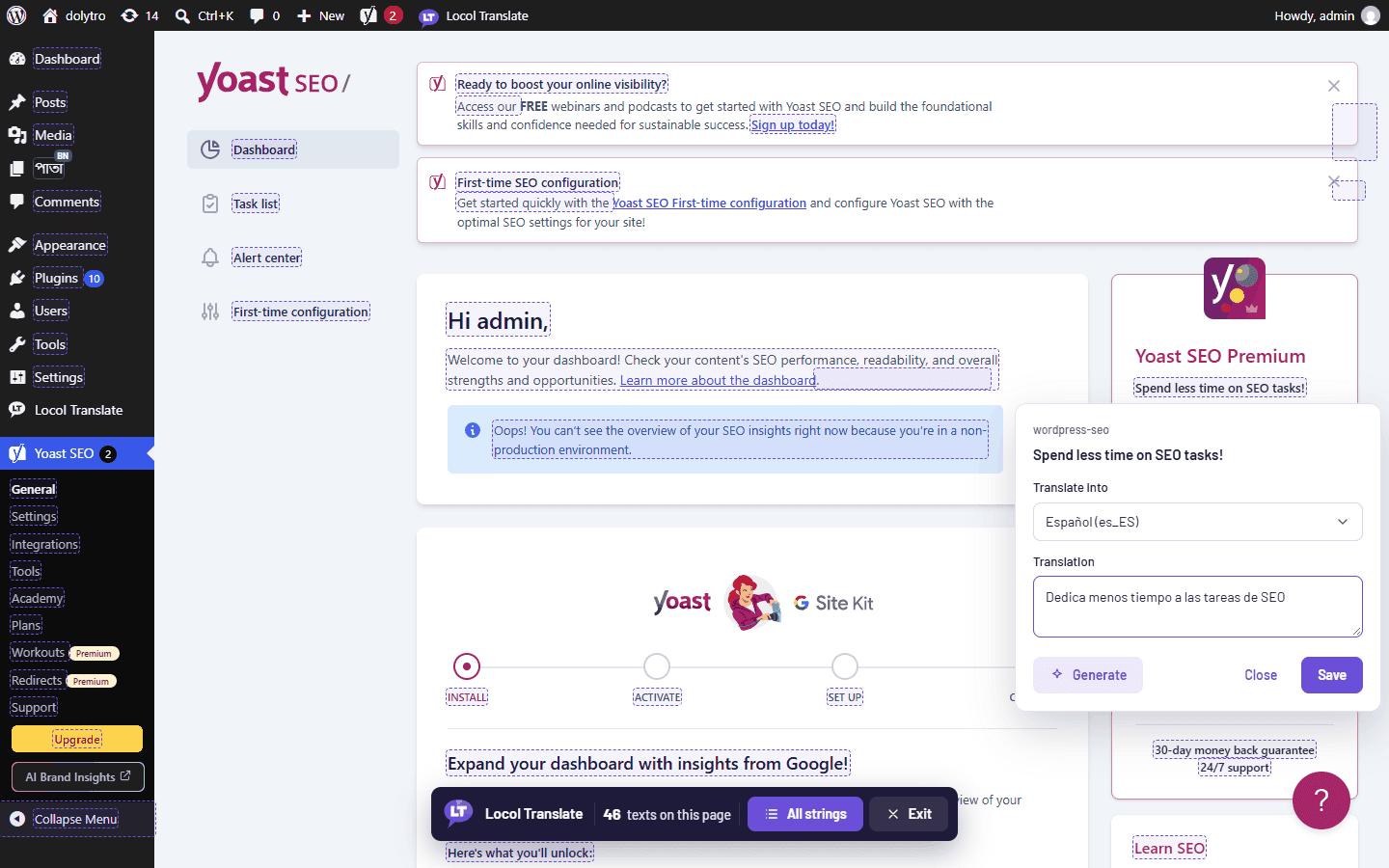
The editor
| Part | What it does |
|---|---|
| Translate into | The language for this text. Each text keeps its own language. |
| Text box | Your translation. It starts with the saved translation, if there is one. |
| Generate | Asks an online service for a draft. See How Generate works. |
| Save | Stores the translation. The text on the page changes at once. |
| Close | Closes the editor without saving. |
Save
- 1Choose the language.
The editor remembers the last one you used.
- 2Type the translation.
Keep placeholders such as
%sand%dexactly as they are in the original. - 3Click Save.
The status line says which language it was saved in.
Placeholders
A placeholder is a marker that WordPress replaces with a number or a name. A translation that has more placeholders than the original is refused, because it would cause an error on the site. A translation that misses one is saved with a warning, so you can check it.
See all texts of a page
The bar at the bottom shows how many texts the page has. Click All strings for the full list, search it, or filter it by text domain.
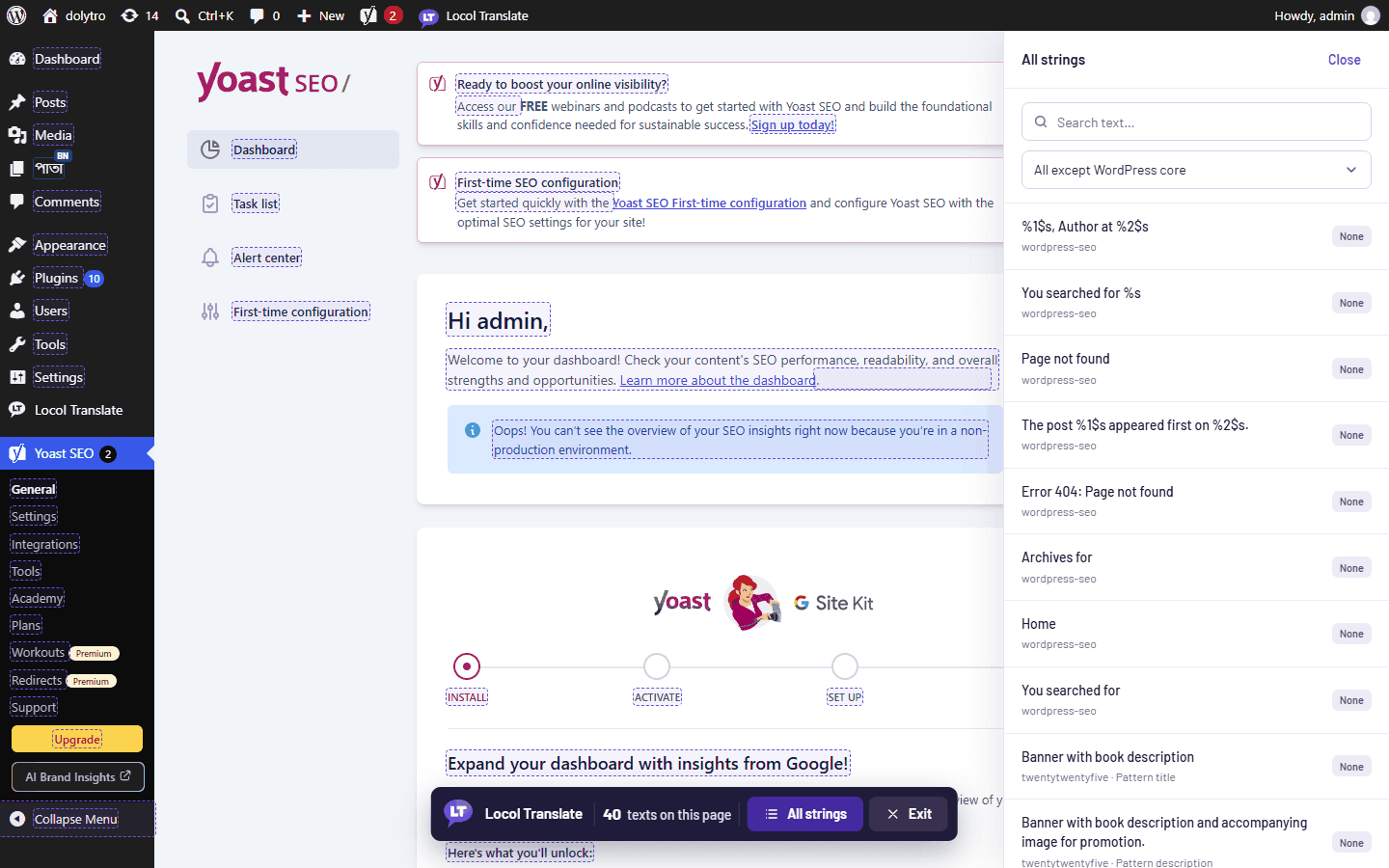
Press Tab to move between marked texts. Enter or Space opens the editor and Escape closes it.