Add a DeepL or Google key
Use your own account with DeepL, Google Cloud Translation or Microsoft Translator.
Why add a key
Without a key, Generate uses the free services. With a key, your own account is asked first, so you get its quality and limits instead of the shared free ones.
Add the key
- 1Open Settings.
Go to Locol Translate, then Settings.
- 2Paste the key.
Use the field for the service you have: - DeepL API key. A free key ends in
:fx. - Microsoft Translator. The key, and for most keys the region, for examplewesteurope. - Google Cloud API key. A Cloud Translation key from Google Cloud. Google requires billing for it. - 3Save the settings.
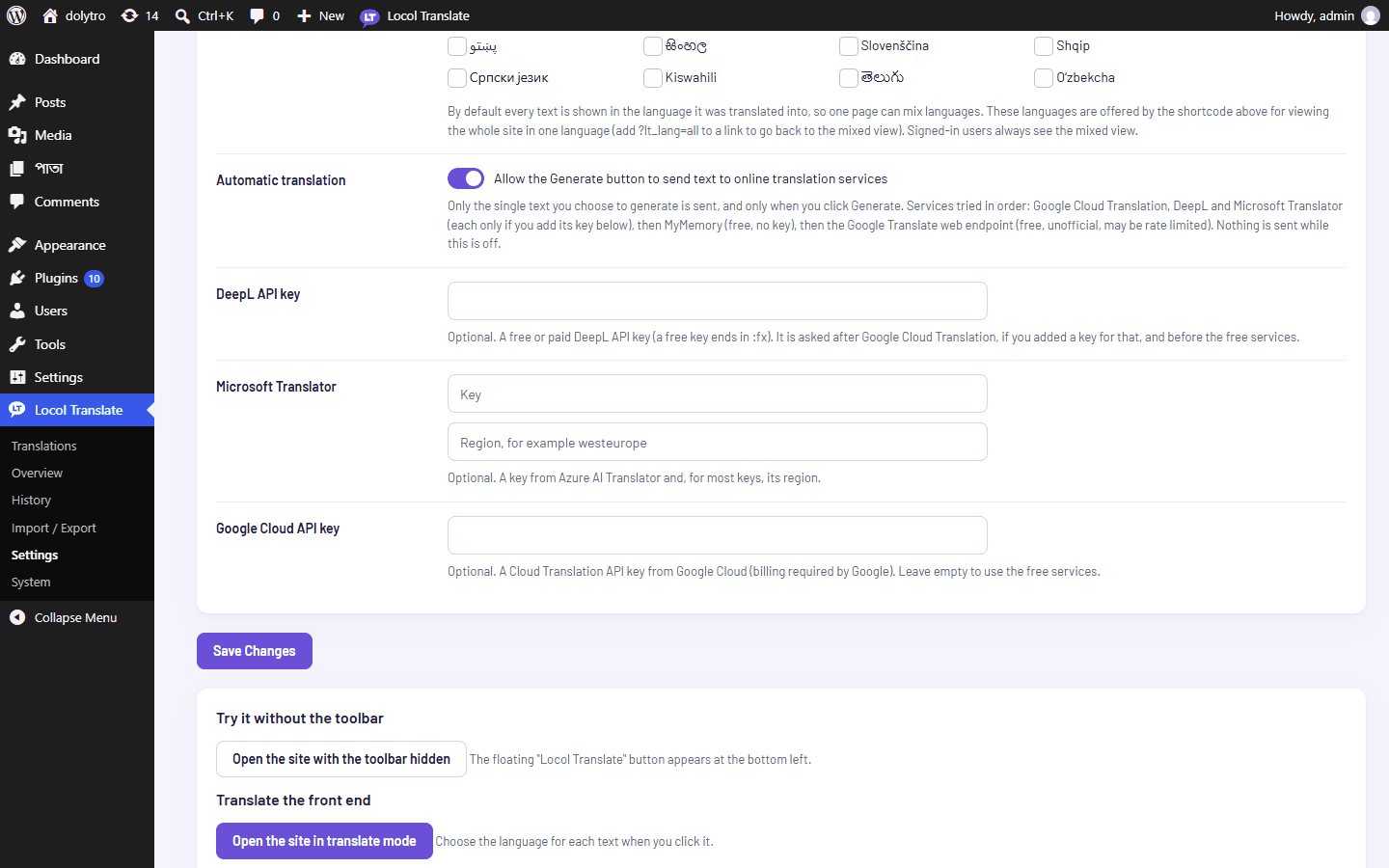
Keys are kept in your database and only used when you click Generate or Translate missing.
Try it
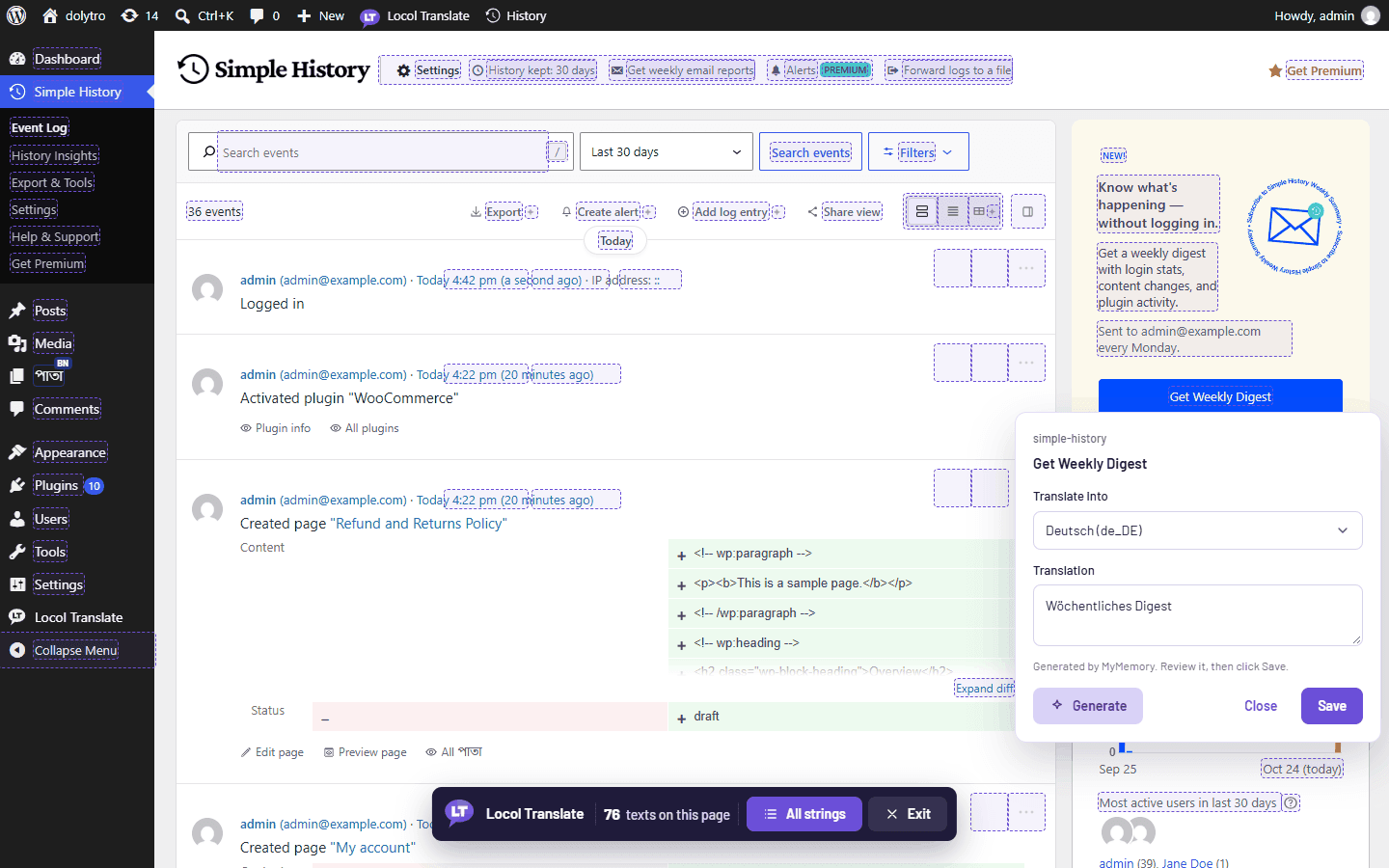
Open any screen in translate mode, click a text and click Generate. The status line names the service that answered, so you can see which key was used. Without a key it names a free service, as below.
Order
Google Cloud Translation is asked first, then DeepL, then Microsoft Translator, then the free services. A service whose key is empty is skipped. See How Generate works.
The Automatic translation switch must be on before any service is asked. The first time you click Generate, a message asks you to allow it.