System and Test a translation
Check that Locol Translate is healthy, and see exactly what one text turns into.
The System screen
Go to Locol Translate, then System. Only administrators see it.
| Section | What it shows |
|---|---|
| Test a translation | A form that shows what one text turns into |
| Checks | The three database tables and their rows, whether the text filters are attached, whether the REST API answers, the database version, PHP mbstring and PHP version, the object cache, and whether machine translation is allowed |
| Versions | Locol Translate, WordPress, PHP, the database, the web server, your languages, the memory limit and the largest upload |
Each check shows OK, Check or Problem with a short reason. A Problem means translations may not be saved or shown.
Test a translation
Use it when a text does not change where you expect. The example is the text "Manually enter an API key" of one plugin.
- 1Enter the text domain.
The text domain of the plugin or theme, shown under its name on the Translations screen. For WordPress itself,
default. - 2Enter the original text.
Exactly as the code writes it, including capitals and punctuation.
- 3Add the context
only if the code uses one.
- 4Choose a language,
or leave The one visitors see.
- 5Click Show the result.
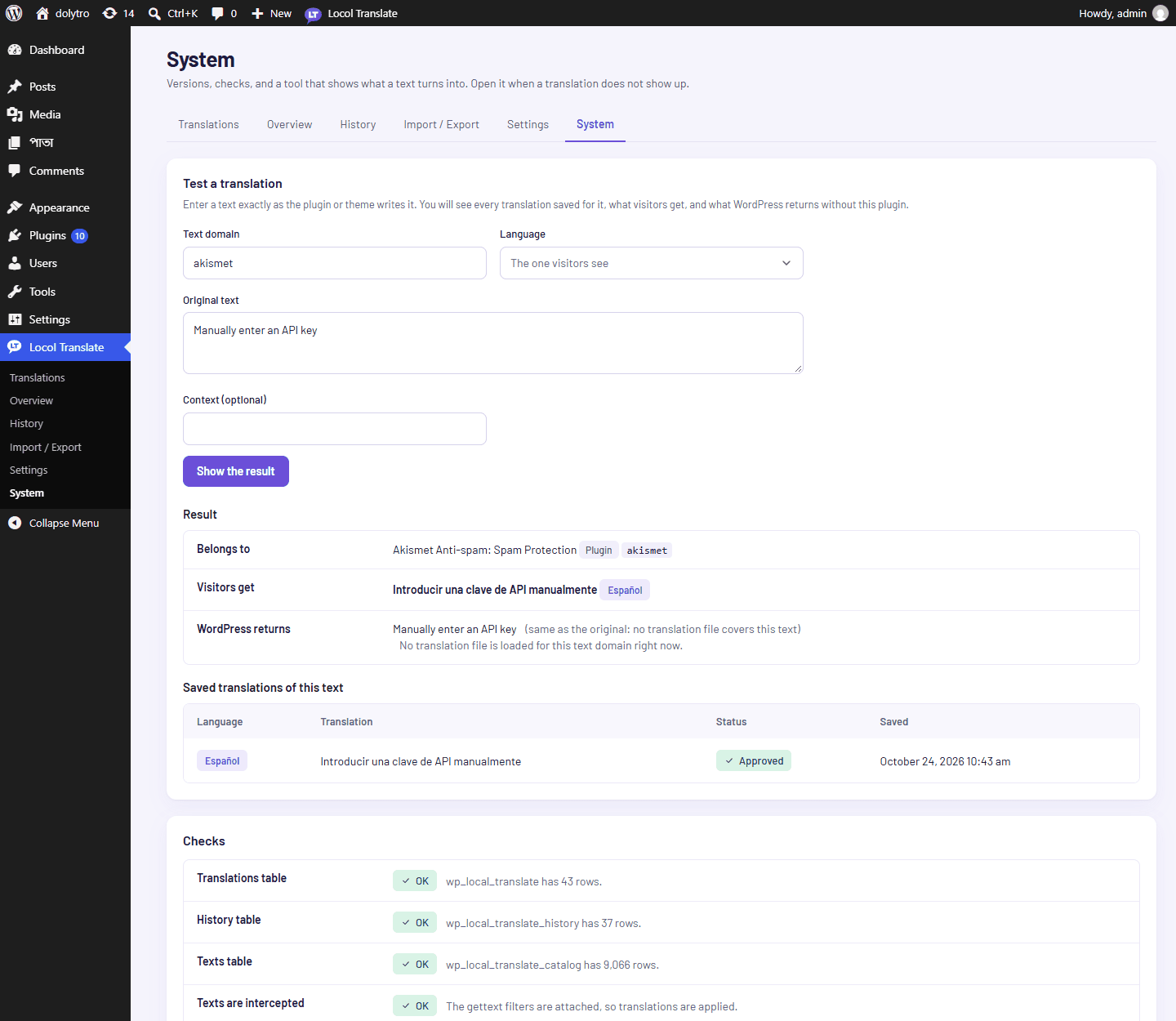
Read the result
| Line | Meaning |
|---|---|
| Belongs to | The plugin, theme or WordPress the text domain points to |
| Visitors get | The translation visitors receive, with its language |
| WordPress returns | What WordPress gives without Locol Translate, from the language files |
| Saved translations | Every language saved for this text, its status and when it was saved |
If Saved translations says None, the text domain, the context or the spelling does not match the text in the code. If Visitors get says the original text is used, the saved translation has a placeholder the original does not have, so it is not used.