Switch languages for visitors
Offer a list of languages with a shortcode, so a visitor can view the whole site in one language.
Choose the languages
- 1Open Settings.
Go to Locol Translate, then Settings.
- 2Find Visitor language switcher.
Tick the languages you want to offer. More than seventy are listed.
- 3Save the settings.
The shortcode is shown in a box above the list, with a Copy button.
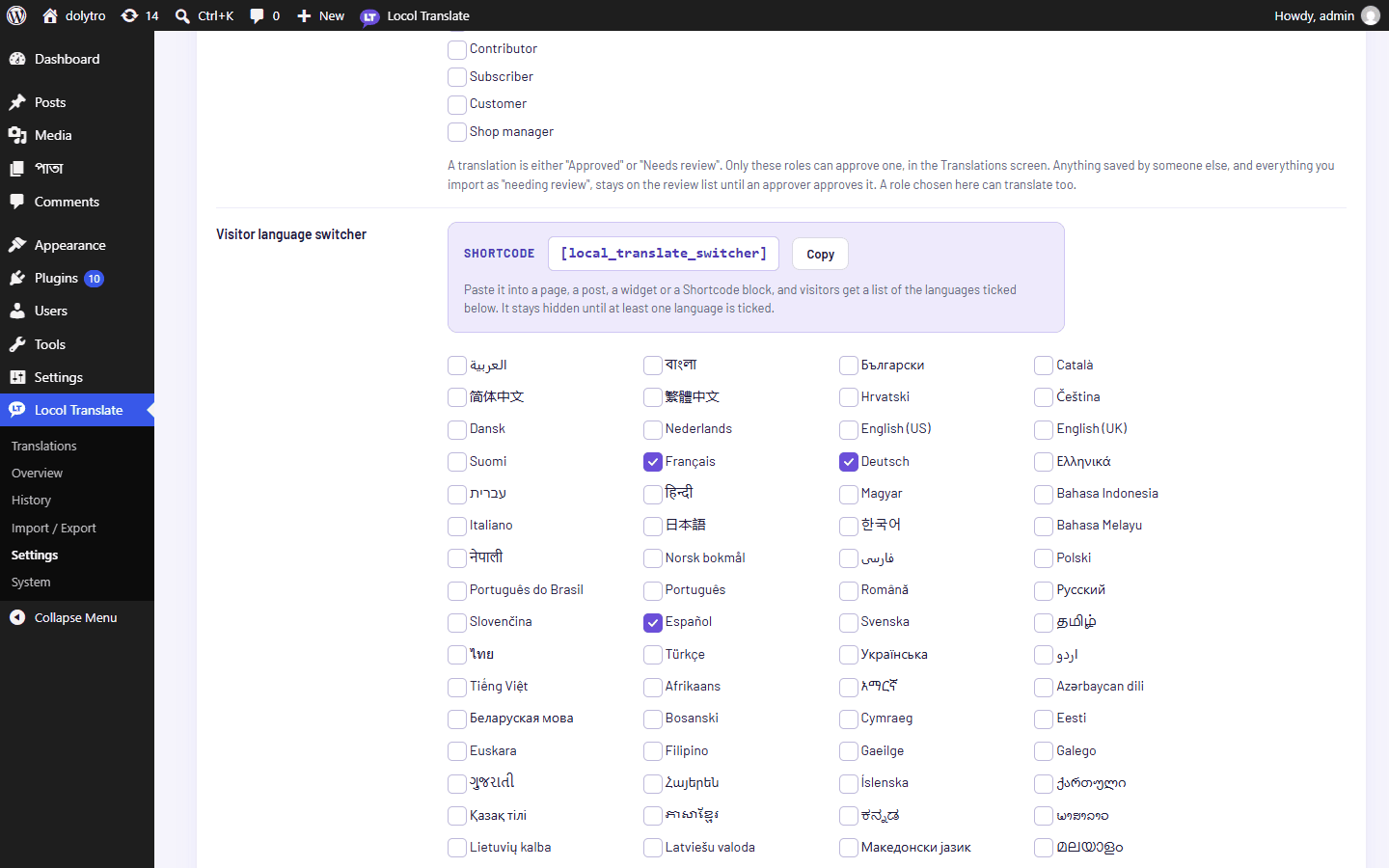
[local_translate_switcher]Place the shortcode
Paste the shortcode into a page, a post, a widget or a Shortcode block. Page builders have a Shortcode widget too: drag it into the header or into a page and paste it there.
The shortcode prints a list of links. The first link is the language of your site; the others are the languages you ticked. Nothing is printed until at least one language is ticked.
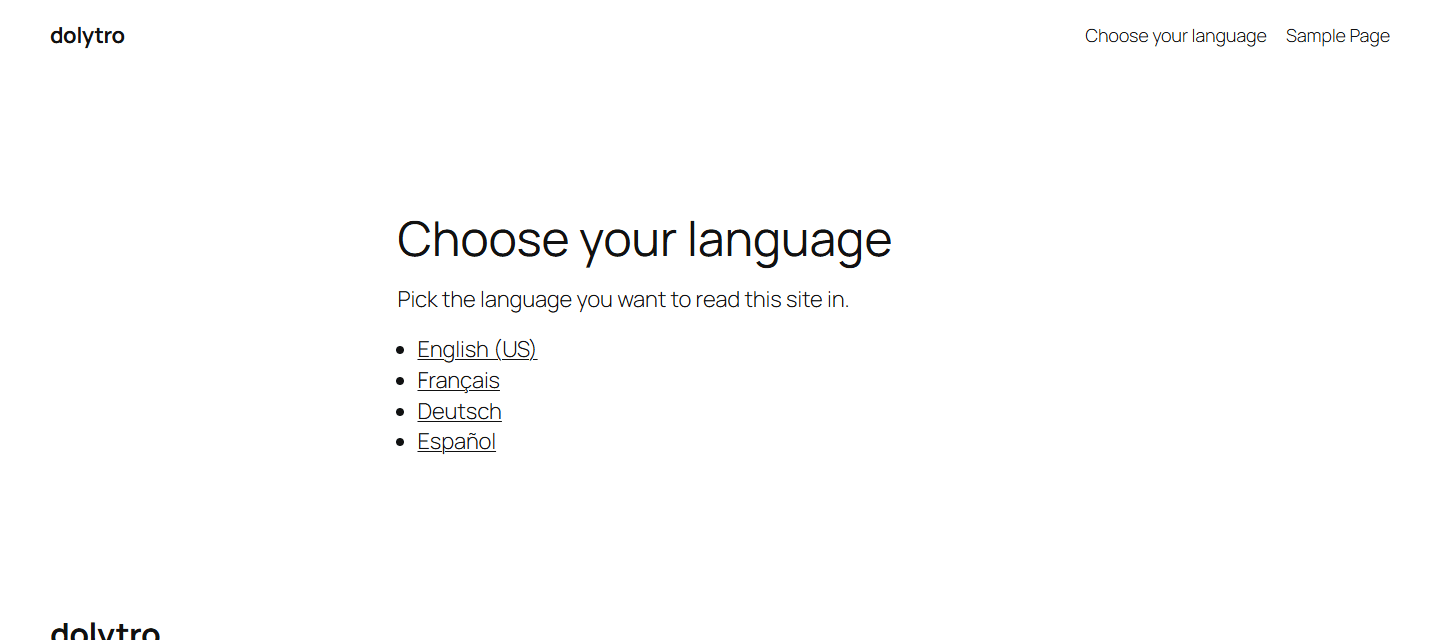
What the links do
| Link | Result |
|---|---|
| A language | The whole site is shown in that language. Texts without a translation in it stay as they were. |
| The site language | The site is shown without Locol Translate translations. |
?lt_lang=all added to an address | Back to the mixed view, where each text shows the language it was last saved in. |
The choice is remembered in a cookie named local_translate_view. You can also send a visitor to one language by adding ?lt_lang=fr_FR to an address.
Good to know
- People who are signed in always see the mixed view, so the translations you work on are the ones you see.
- Right-to-left languages (Arabic, Hebrew, Persian, Urdu, Pashto) set the page direction when a visitor views the site in that language.
- A page cache that ignores cookies serves everyone the same copy. See Troubleshooting.